7 Configuration Errors That Expose You to Chrome Zero-Day Vulnerabilities
Browser zero-day exploits often succeed not because the code is broken, but because standard security configurations fail to limit the damage of a successful breach.
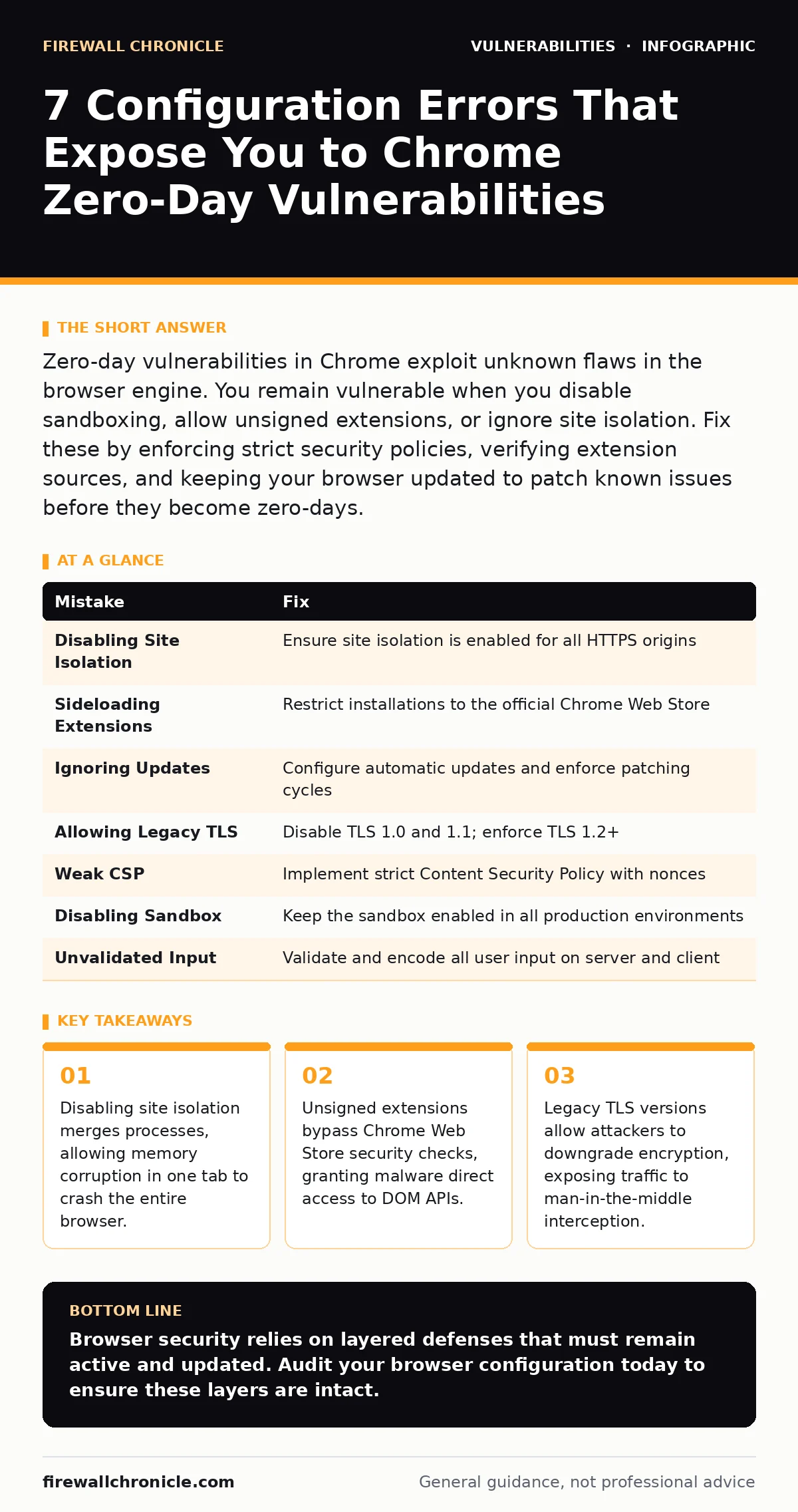
Zero-day vulnerabilities in Chrome exploit unknown flaws in the browser engine. You remain vulnerable when you disable sandboxing, allow unsigned extensions, or ignore site isolation. Fix these by enforcing strict security policies, verifying extension sources, and keeping your browser updated to patch known issues before they become zero-days.
Mistake 1: Disabling Site Isolation for Performance
Site isolation is a security feature that runs each website in its own operating system process. Developers often disable this feature to reduce memory usage or simplify debugging. This decision removes a critical boundary between different web origins. When site isolation is disabled, a malicious script on one tab can access the memory space of another tab. This breaks the same-origin policy enforcement at the process level.
An attacker can exploit a use-after-free vulnerability in a benign tab to execute code in a privileged tab. The consequence is a complete compromise of the browser session. The fix is to ensure site isolation remains enabled in production environments. Chrome enables this by default for HTTPS sites. Verify your security policy flags do not override this setting. Do not disable this feature unless you are actively debugging a specific rendering bug.
Mistake 2: Installing Unsigned or Sideloading Extensions
Extensions operate with elevated privileges within the browser environment. They can read cookies, modify DOM elements, and intercept network requests. Installing extensions from outside the official Chrome Web Store bypasses automated security scans. These sideloaded extensions are not subject to the same code review standards. A compromised extension can inject malicious JavaScript into every page you visit. This turns the browser into a persistent infection vector.
The consequence is unauthorized access to your session tokens and sensitive input data. The fix is to restrict extension installation to the official store only. Use enterprise policies to block sideloading entirely. Regularly audit installed extensions and remove those that are no longer needed. Check the extension permissions before installation. Remove any extension that requests more access than its function requires.
Mistake 3: Ignoring Automatic Update Policies
Chrome receives frequent security patches to address newly discovered vulnerabilities. A zero-day exploit exists until a patch is released and applied. If your browser does not update automatically, you remain vulnerable to known exploits for weeks or months. Enterprise environments often delay updates for compatibility testing. This delay creates a window of opportunity for attackers.
The consequence is exposure to publicly disclosed vulnerabilities that have known proof-of-concept exploits. The fix is to configure automatic updates for all client machines. Ensure the update service has the necessary permissions to restart the browser. Monitor update status via your device management console. Do not disable automatic updates for security reasons. The risk of running unpatched software far outweighs the inconvenience of a brief restart.
Mistake 4: Allowing Insecure Legacy TLS Versions
Transport Layer Security (TLS) encrypts data between your browser and the server. Older versions like TLS 1.0 and 1.1 have known cryptographic weaknesses. Browsers sometimes allow these versions to maintain compatibility with legacy systems. This compatibility creates a downgrade attack surface. An attacker can force your browser to use a weaker encryption protocol. This allows them to decrypt or modify your traffic in transit.
The consequence is exposure of credentials and session cookies to network eavesdroppers. The fix is to disable support for TLS 1.0 and 1.1 in your browser settings. Enforce TLS 1.2 or higher for all internal and external connections. Update your server configurations to reject older protocol versions. This ensures that even if a browser vulnerability is exploited, the data in transit remains encrypted.
Mistake 5: Overly Permissive Content Security Policies
Content Security Policy (CSP) is an HTTP header that tells the browser which sources of scripts are allowed. Weak CSP configurations allow inline scripts or scripts from untrusted domains. This reduces the effectiveness of the browser’s native XSS protections. Without strict CSP, a reflected cross-site scripting (XSS) attack can execute arbitrary code. This code runs with the privileges of the website.
The consequence is session hijacking and data exfiltration from the user’s browser. The fix is to implement a strict CSP that only allows scripts from your own domain. Use nonces or hashes for inline scripts instead of allowing 'unsafe-inline'. Test your CSP in report-only mode before enforcing it. Regularly audit your CSP headers for gaps. Ensure that third-party scripts are loaded from trusted sources with subresource integrity checks.
See also: Browser Updates: Why Silent Patches Fail and How to Fix Them
Mistake 6: Disabling the Browser Sandbox
The Chrome sandbox restricts what code can do within the browser process. It limits access to the file system, network, and other processes. Developers sometimes disable the sandbox to run debugging tools or legacy applications. This action removes the last line of defense against memory corruption exploits. If an attacker exploits a buffer overflow, the sandbox usually prevents them from writing to disk.
Without the sandbox, the attacker can install persistent malware. The consequence is a full system compromise from a single browser tab. The fix is to keep the sandbox enabled in all non-debugging scenarios. Use separate debugging profiles that are not connected to the network. Never disable the sandbox for production use or daily browsing. The performance cost is negligible compared to the security risk.
Mistake 7: Failing to Validate Input in Web Applications
Web applications must validate all user input before processing it. Failure to do so allows attackers to inject malicious data into your application. This can lead to vulnerabilities like XML external entity (XXE) attacks or SQL injection. These vulnerabilities can be exploited through the browser to steal data or deface pages. The consequence is a breach of your backend systems and user data.
The fix is to implement strict input validation on both the client and server sides. Use allowlists for expected data formats. Encode output data to prevent script injection. Use parameterized queries for database interactions. Regularly review your code for common vulnerability patterns. Implement threat modeling to identify potential input vectors early in the development cycle.
| Mistake | Fix |
|---|---|
| Disabling Site Isolation | Ensure site isolation is enabled for all HTTPS origins |
| Sideloading Extensions | Restrict installations to the official Chrome Web Store |
| Ignoring Updates | Configure automatic updates and enforce patching cycles |
| Allowing Legacy TLS | Disable TLS 1.0 and 1.1; enforce TLS 1.2+ |
| Weak CSP | Implement strict Content Security Policy with nonces |
| Disabling Sandbox | Keep the sandbox enabled in all production environments |
| Unvalidated Input | Validate and encode all user input on server and client |
Key takeaways
- Disabling site isolation merges processes, allowing memory corruption in one tab to crash the entire browser.
- Unsigned extensions bypass Chrome Web Store security checks, granting malware direct access to DOM APIs.
- Legacy TLS versions allow attackers to downgrade encryption, exposing traffic to man-in-the-middle interception.
Browser security relies on layered defenses that must remain active and updated. Audit your browser configuration today to ensure these layers are intact.
Frequently asked questions
How do I know if my Chrome version is vulnerable to zero-days?
Check the official Chrome release notes for security fixes. If your version is older than the current stable release, you are likely vulnerable to recently patched issues.
Can a zero-day exploit bypass the sandbox entirely?
Yes, if the exploit targets a flaw in the sandbox implementation itself. This is why keeping the browser updated is critical, as these flaws are patched quickly.
Does using incognito mode protect against zero-day exploits?
No, incognito mode only clears local history and cookies after the session. It does not prevent the execution of malicious code or memory corruption exploits.
How often should I review my browser security settings?
Review your settings every time a major browser update is released. New features may introduce new configuration options that require security adjustments.
How this guide was produced: written by the Firewall Chronicle editorial team with AI assistance, checked against the public references listed below, and reviewed when the facts change. See our editorial policy or report an error.