How to Stop Scareware Pop Ups: Technical Prevention Strategies
Scareware relies on browser permissions rather than system exploits, making permission revocation more effective than traditional antivirus scanning for immediate relief.
Stop scareware pop ups by revoking site notification permissions in your browser settings. Install a reputable ad blocker to prevent the initial trigger. Keep software updated to close underlying vulnerabilities. These steps remove the attack vector without requiring system reinstallation or complex configuration changes.
Why Scareware Persists in Modern Browsers
Scareware operates by exploiting user trust rather than technical vulnerability. The attacker displays a full-screen overlay claiming your device is infected. This overlay often mimics operating system dialogs. It demands immediate action, such as calling a support number or downloading a cleaner. The psychological pressure overrides rational decision-making. You must understand the mechanism to dismantle it. The threat does not usually reside on your hard drive. It lives in the browser session. Closing the window often fails because the script redirects you immediately. You need to cut the connection at the source. The source is the permission you granted, or the script that loaded.
How to Stop Scareware Pop Ups Effectively
You can stop scareware pop ups by managing browser notifications and blocking malicious scripts. The most common vector is the Web Notifications API. When a site asks to send notifications, you often click allow without reading. This grants the site permission to display alerts outside the browser window. These alerts look like system warnings. They appear even when the browser is minimized. Revoking this permission removes the attacker’s ability to display fake alerts. You do not need to uninstall anything. You simply tell the browser to stop listening to that specific domain. This action is immediate and permanent for that site.
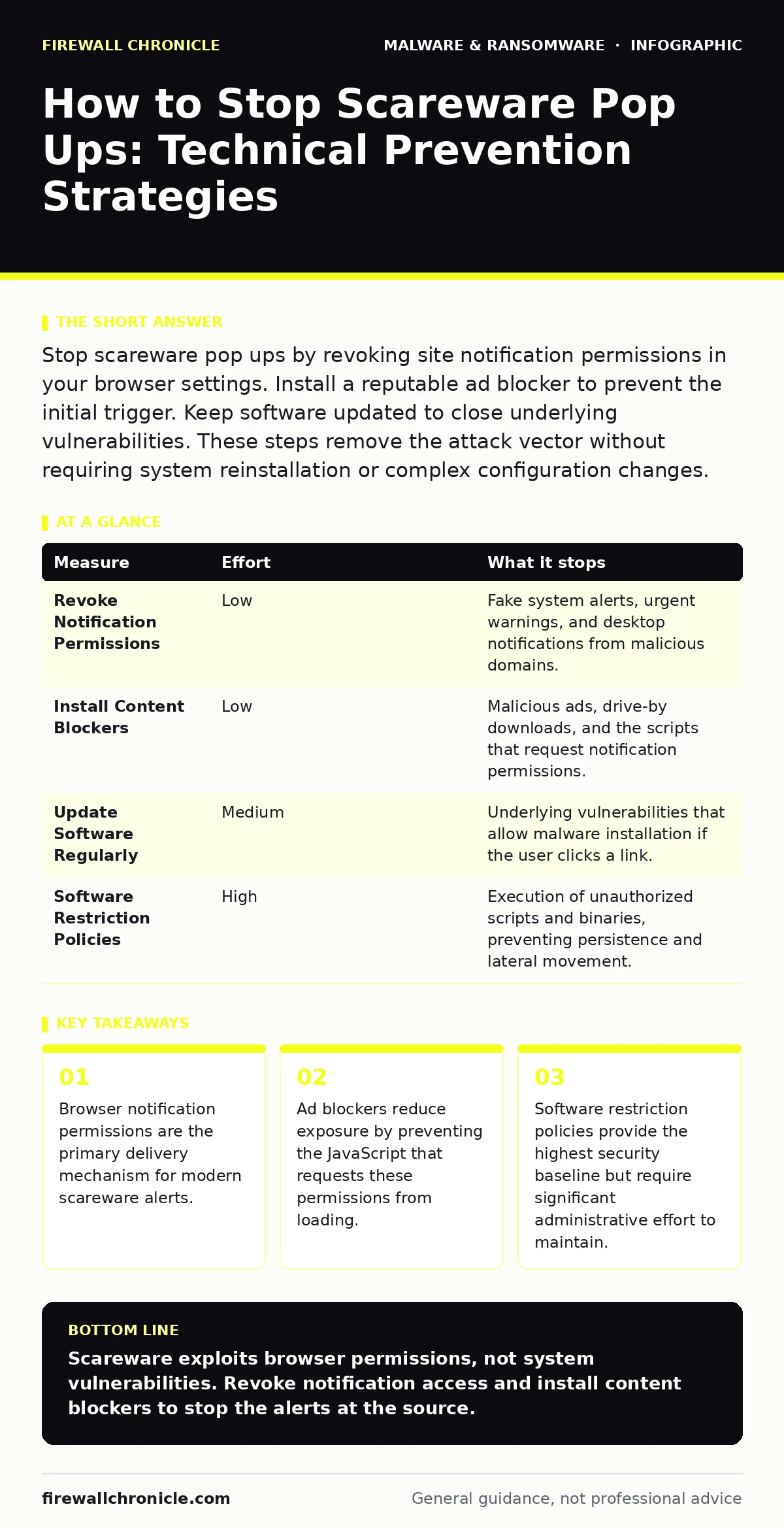
| Measure | Effort | What it stops |
|---|---|---|
| Revoke Notification Permissions | Low | Fake system alerts, urgent warnings, and desktop notifications from malicious domains. |
| Install Content Blockers | Low | Malicious ads, drive-by downloads, and the scripts that request notification permissions. |
| Update Software Regularly | Medium | Underlying vulnerabilities that allow malware installation if the user clicks a link. |
| Software Restriction Policies | High | Execution of unauthorized scripts and binaries, preventing persistence and lateral movement. |
The Hidden Cost of Notification Permissions
Most users view notification prompts as benign. They assume only legitimate services use them. This assumption is dangerous. A single click on "Allow" grants a persistent channel for abuse. The site can send notifications at any time. It can change the content dynamically. The browser treats these alerts as trusted communication. This trust is the exploit.
The attacker does not need to hack your computer. They only need you to grant permission once. This is why simply closing the pop up fails. The permission remains active. The next ad load triggers a new alert. You must manually audit these permissions. Check your browser settings for a list of allowed sites. Remove any domain you do not recognize or use daily.
Ad Blockers as a First Line of Defense
Content blockers operate by filtering network requests. They prevent the browser from loading specific scripts. Many scareware campaigns rely on malicious advertising networks. These networks serve the code that triggers the notification request. If the script never loads, the request never happens. You never see the prompt. This is prevention rather than reaction. Modern blockers use community-maintained lists of known bad domains. They update automatically. This reduces the cognitive load on you. You do not need to recognize the threat. The tool handles it silently. This approach complements permission management. It stops the attack before it reaches the user interface.
Understanding Browser Hijackers and Spyware
Scareware often coexists with other threats. A browser hijacker may change your search engine or homepage. This creates additional confusion. The user sees unfamiliar pages and assumes infection. Spyware may track your behavior to target ads more effectively. These tools work together. The hijacker keeps you engaged with the malicious ecosystem. The spyware provides data to refine the attacks. Scareware provides the urgency to drive conversions. Addressing one does not solve the others. You must clear cache, cookies, and extensions. A complete browser reset is often necessary. This restores default settings and removes hidden configurations.
See also: Browser Updates: Why Silent Patches Fail and How to Fix Them
The Role of Software Restriction Policies
For enterprise environments, individual behavior is insufficient. You need systemic controls. Software restriction policies allow you to define what code can execute. You can block scripts from untrusted domains. You can require digital signatures for all executables. This prevents the installation of persistent malware. It also limits the impact of drive-by downloads.
If a user clicks a malicious link, the policy blocks the payload. This adds a layer of defense in depth. It does not stop the initial scareware alert. It stops the subsequent infection. This measure requires careful configuration. Overly restrictive policies can break legitimate applications. Balance is key. Test policies in a sandbox before deployment.
What Does Not Work on Its Own
Many users attempt to fix the problem by deleting files. This is ineffective. The threat is often transient. It exists only in memory. Deleting files after the fact does not prevent recurrence. Rebooting the computer clears memory. It does not remove the notification permission. The next visit to the malicious site triggers the alert again. Users also try to block IP addresses.
This fails because attackers use dynamic hosting. The IP changes frequently. Blocking domains is better, but still reactive. The most common mistake is ignoring the prompt. Clicking "Block" on the notification request is critical. Clicking "Allow" seals your fate. You must train yourself to never grant notification access to unknown sites.
Closing Checklist for Immediate Action
You can reduce your risk significantly with three actions. These steps take less than five minutes. They address the most common vectors.
- Audit browser notification permissions and revoke access for unknown sites.
- Install a reputable content blocker to prevent malicious ad scripts.
- Update your browser and operating system to patch known vulnerabilities.
These measures do not guarantee absolute safety. They remove the most likely attack paths. You must remain aware of new threats. Technology evolves, and so do attackers. Stay informed about emerging techniques. Review your settings periodically. Permissions can be added without your knowledge. Regular audits maintain a secure state. This discipline is the foundation of digital hygiene.
Comparing Prevention Strategies
Different strategies offer different trade-offs. Notification management is low effort and high impact. It stops the immediate annoyance. Content blocking is passive and continuous. It reduces exposure to bad actors. Software updates close technical holes. They prevent deeper infections. Software restriction policies provide the strongest control. They require the most effort to implement. Choose based on your context. Individual users should prioritize browser settings. Organizations should implement policy controls. Combining these methods creates a resilient defense. No single tool is sufficient. Layered security is the standard.
Key takeaways
- Browser notification permissions are the primary delivery mechanism for modern scareware alerts.
- Ad blockers reduce exposure by preventing the JavaScript that requests these permissions from loading.
- Software restriction policies provide the highest security baseline but require significant administrative effort to maintain.
Scareware exploits browser permissions, not system vulnerabilities. Revoke notification access and install content blockers to stop the alerts at the source.
Frequently asked questions
Does deleting browser history remove scareware?
No. Deleting history removes records of visited sites. It does not remove notification permissions. You must manually revoke permissions in settings.
Can scareware actually install malware?
Yes. The fake alerts often link to download pages. If you click the link and run the file, malware installs. The pop up itself is just a lure.
Why does my antivirus not detect scareware?
Antivirus scans for known malicious files. Scareware often runs as legitimate JavaScript. It does not leave a file signature. It is a behavior, not a file.
Is it safe to click "Block" on the prompt?
Yes. Clicking "Block" denies the site permission to send notifications. This is the correct action. It prevents future alerts from that domain.
How this guide was produced: written by the Firewall Chronicle editorial team with AI assistance, checked against the public references listed below, and reviewed when the facts change. See our editorial policy or report an error.